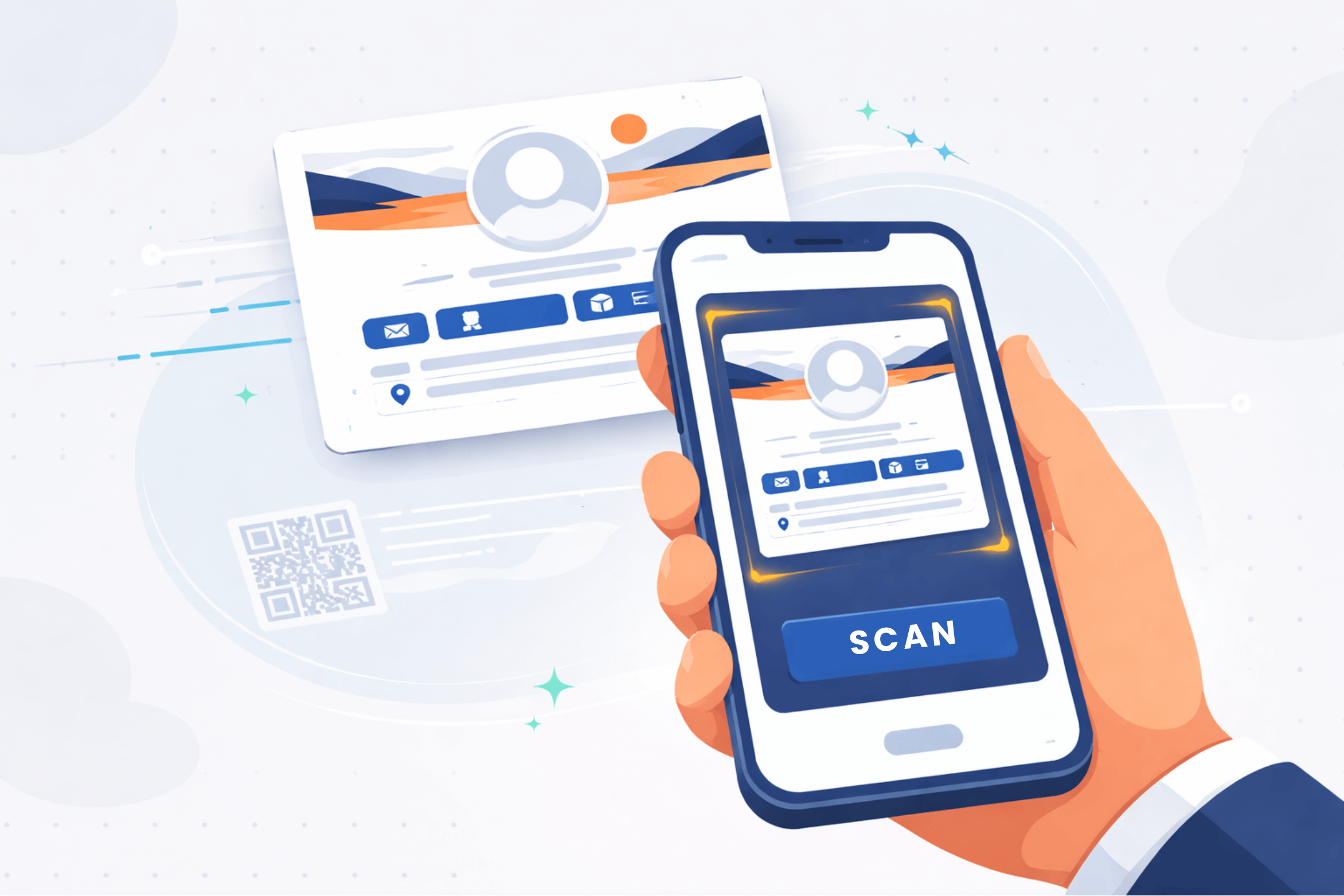
This guide explains how business card scanning works in Segwik and how to scan cards so the information comes in clean and usable.
When you scan a business card in Segwik, a few things happen behind the scenes:
Scanning works best when cards are:
Most modern business cards scan very well with minimal cleanup.
Some things may require quick review or correction:
This is normal and easy to fix during review.
You don’t need to wait on the scan screen.
Segwik processes scans in the background and notifies you when they’re ready to review.
Before saving a scanned contact, quickly review:
You can edit anything that didn’t scan perfectly.
Once saved:
Scanning is just the starting point — follow-up comes next.
How many business cards do you have right now that could be scanned in under five minutes?
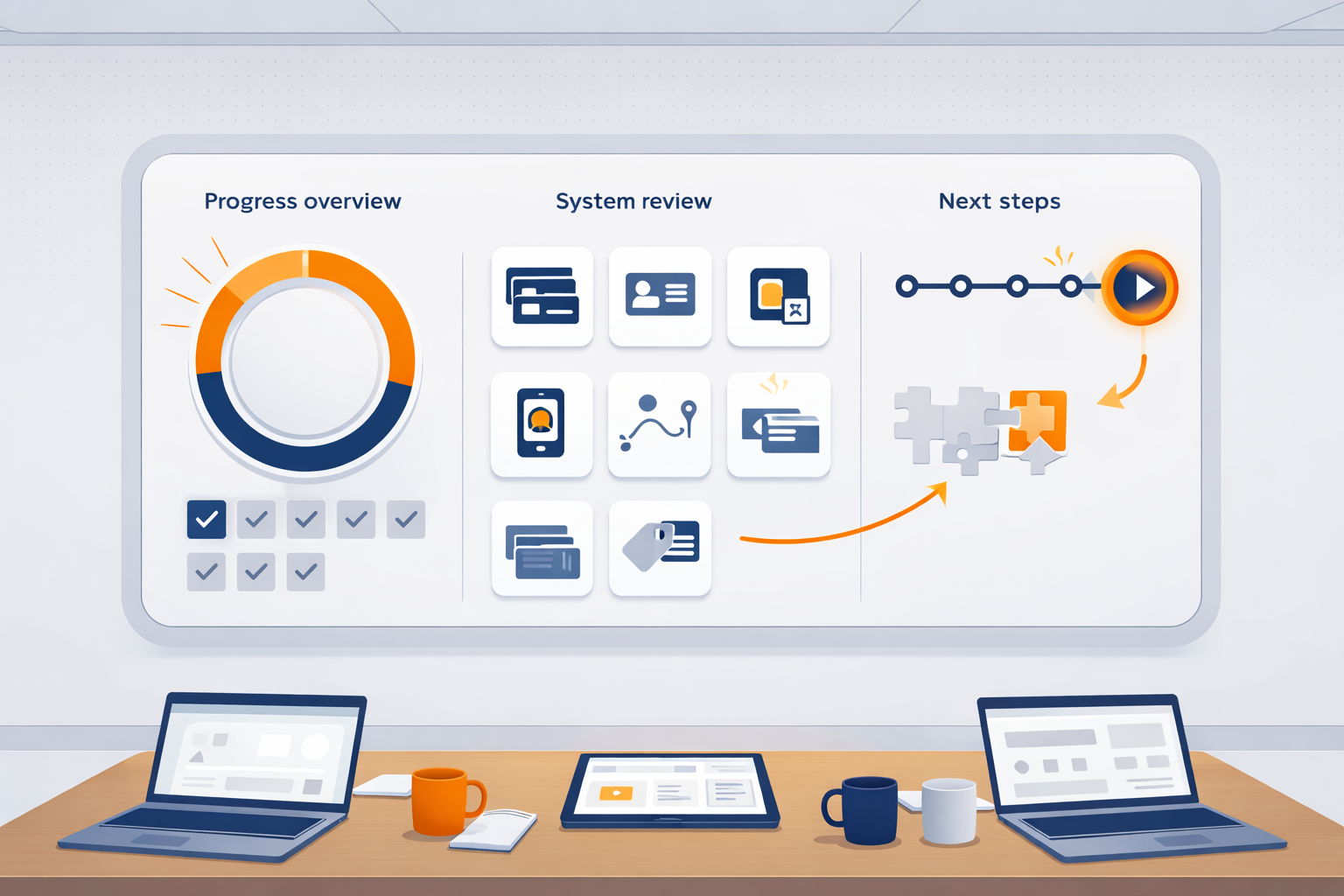
Best mindset: show up honestly — we’ll build the system around what you actually need.
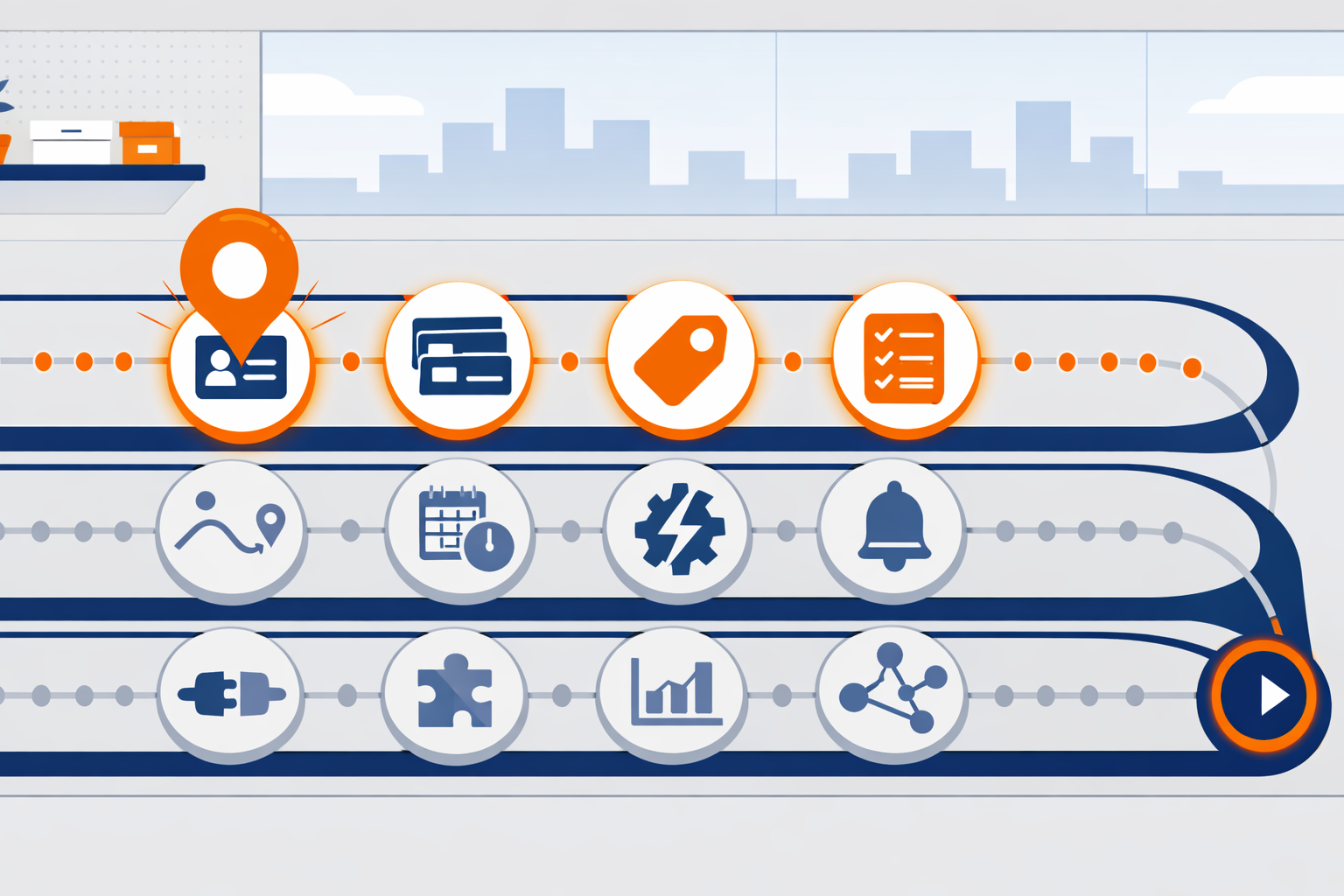
If you’re ever unsure what to do next, the Roadmap is your answer.
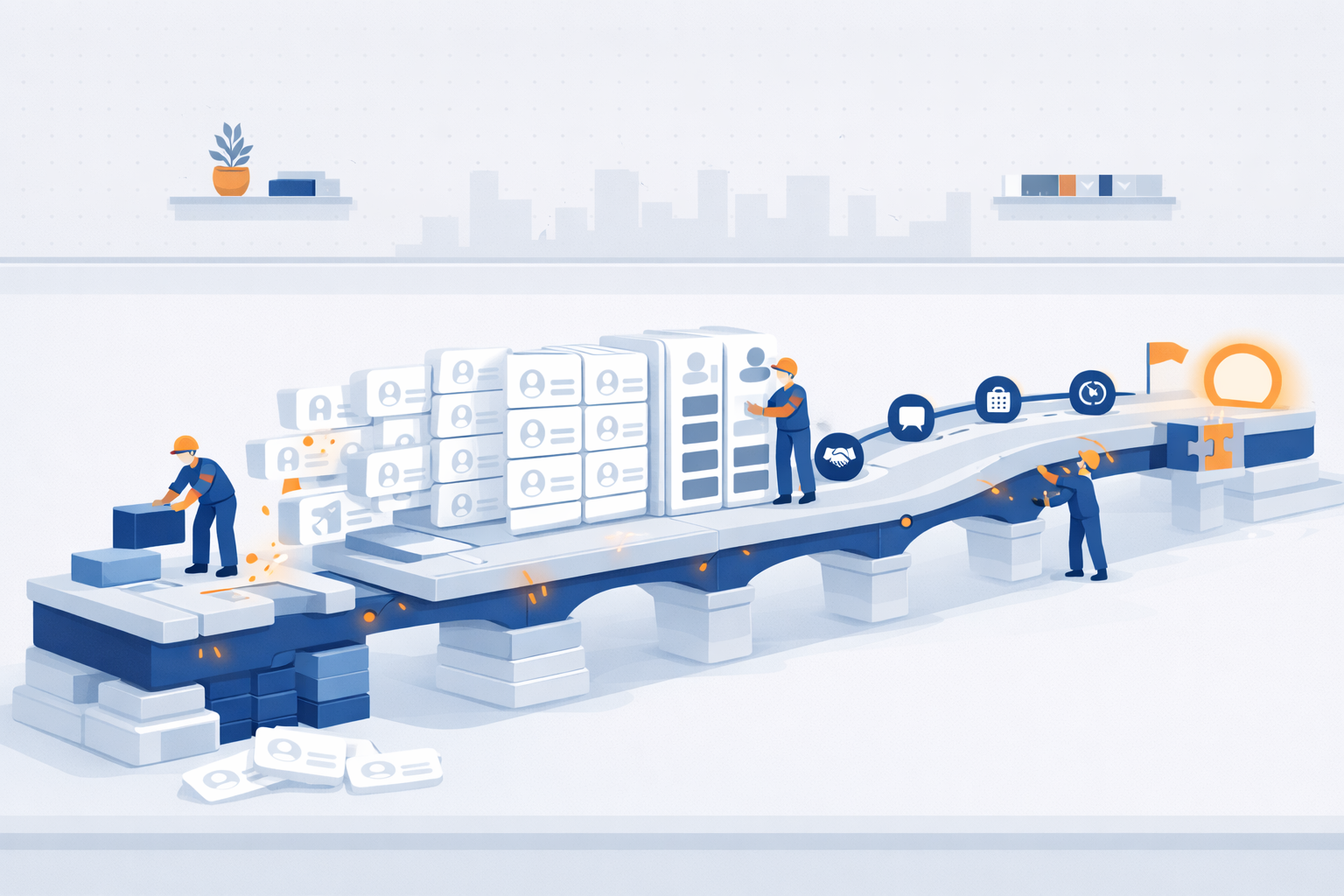
If you use Segwik consistently for one month, you stop relying on memory. You stop losing track of people. You stop wondering what to do next.
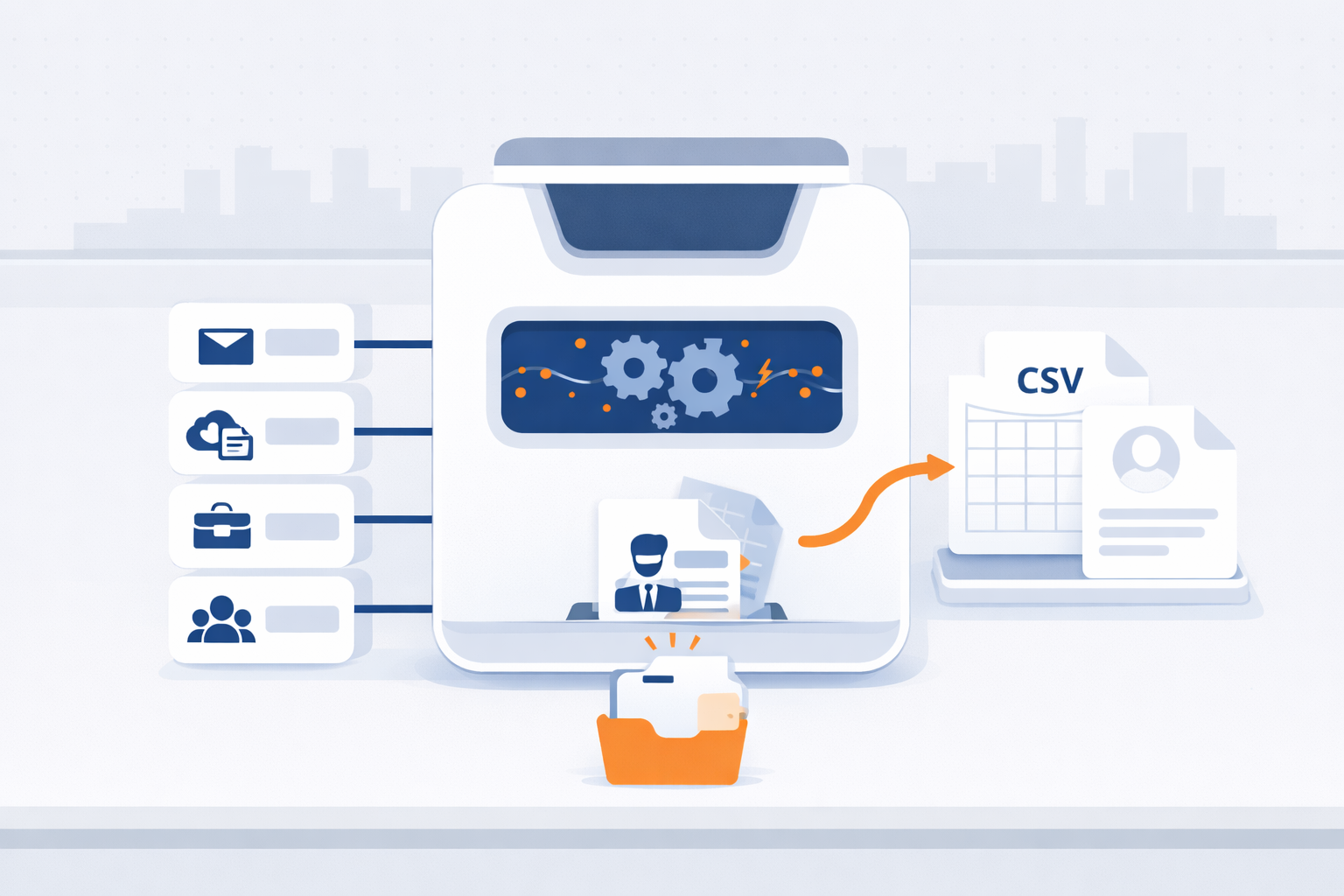
Export your contacts from Gmail, iCloud, Outlook, or Mailchimp in minutes—so you can bring them into Segwik quickly and stay organized.
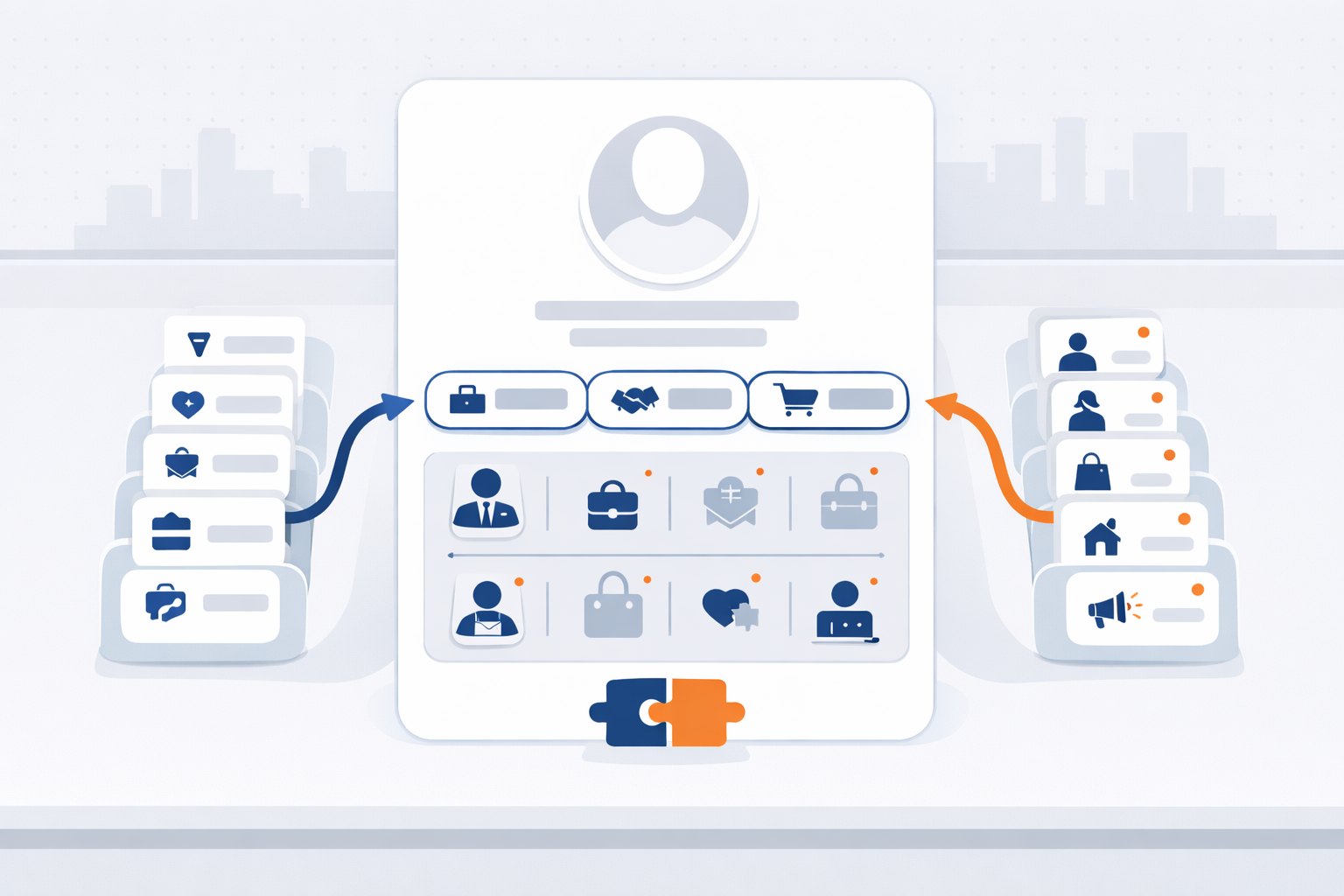
Contact Types and Personas help Segwik understand both your relationship to someone and who they are in your world.
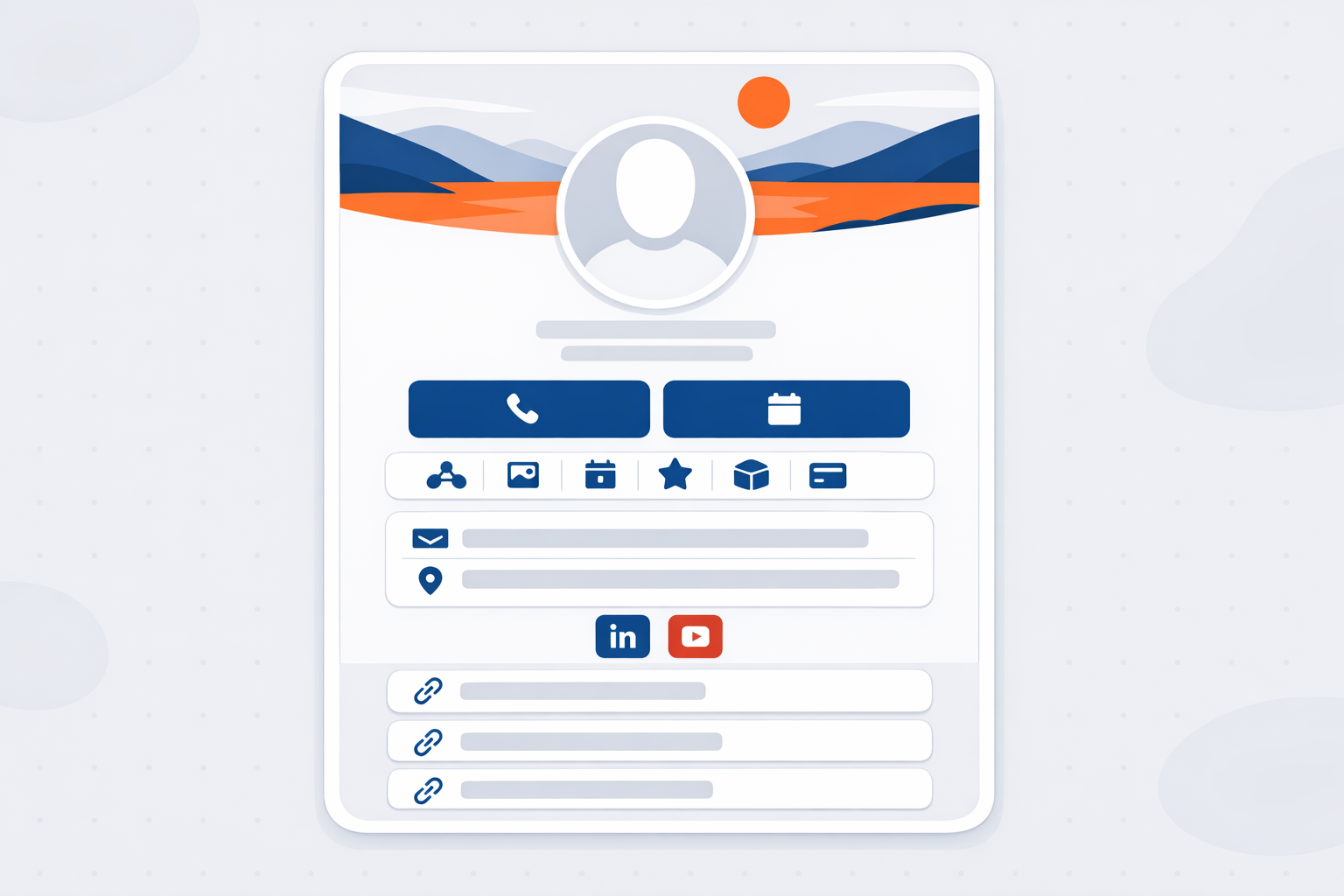
A great digital card makes it easy for people to save you, contact you, book time with you, and share you—without friction.
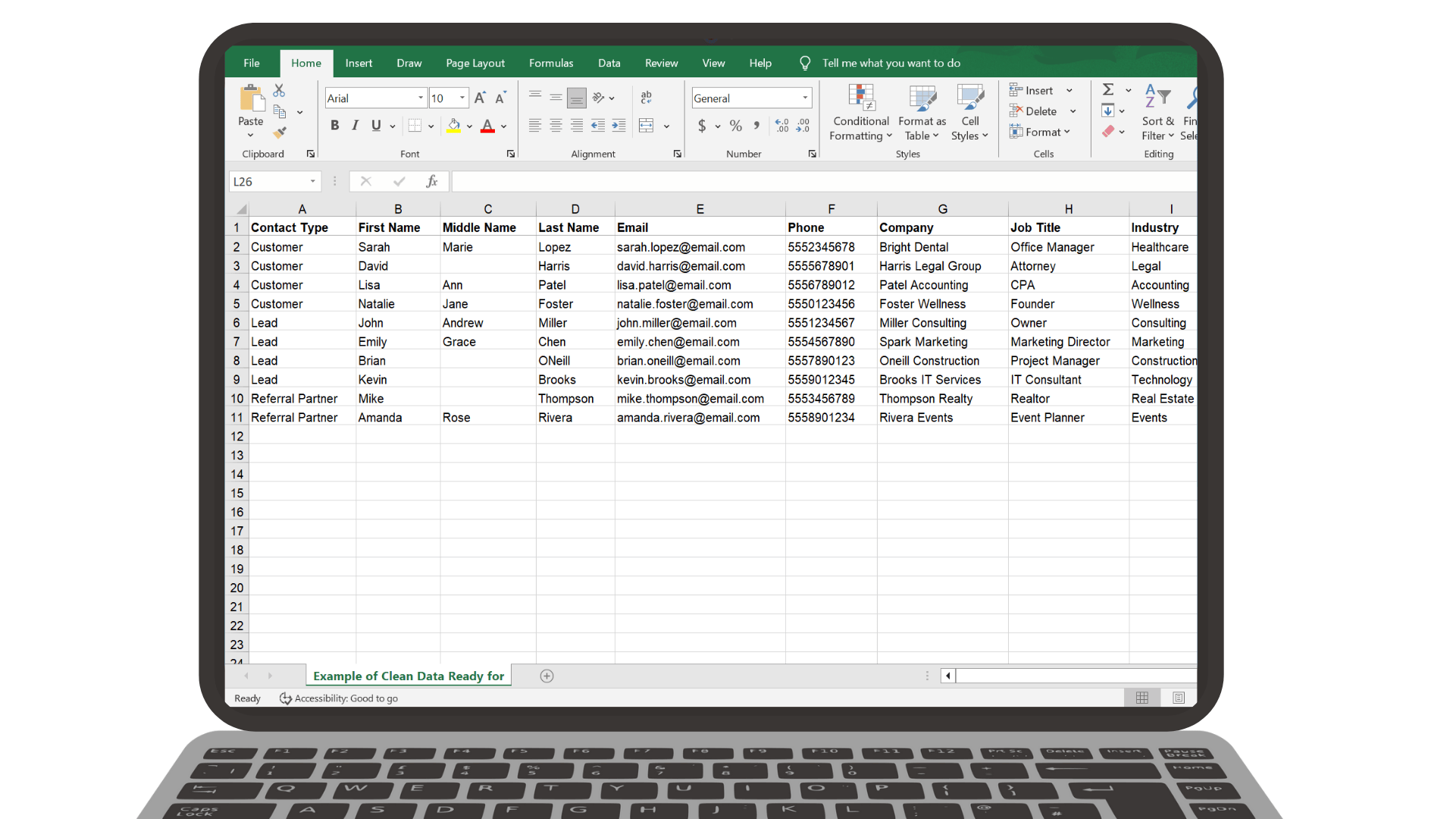
Clean data imports faster, maps easier, and creates fewer issues later.
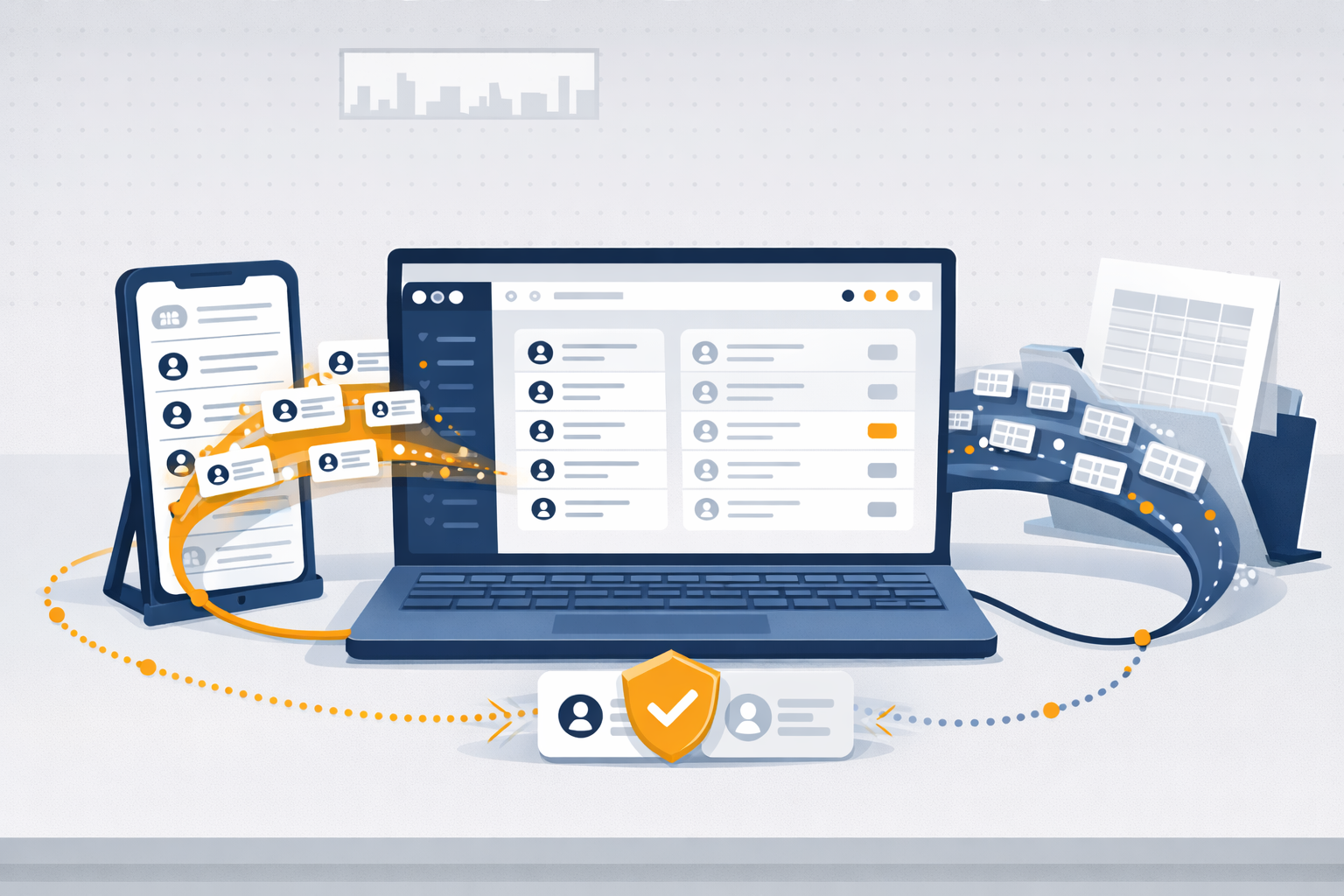
Importing helps you get your existing contacts into Segwik quickly so you can focus on relationships instead of retyping information.
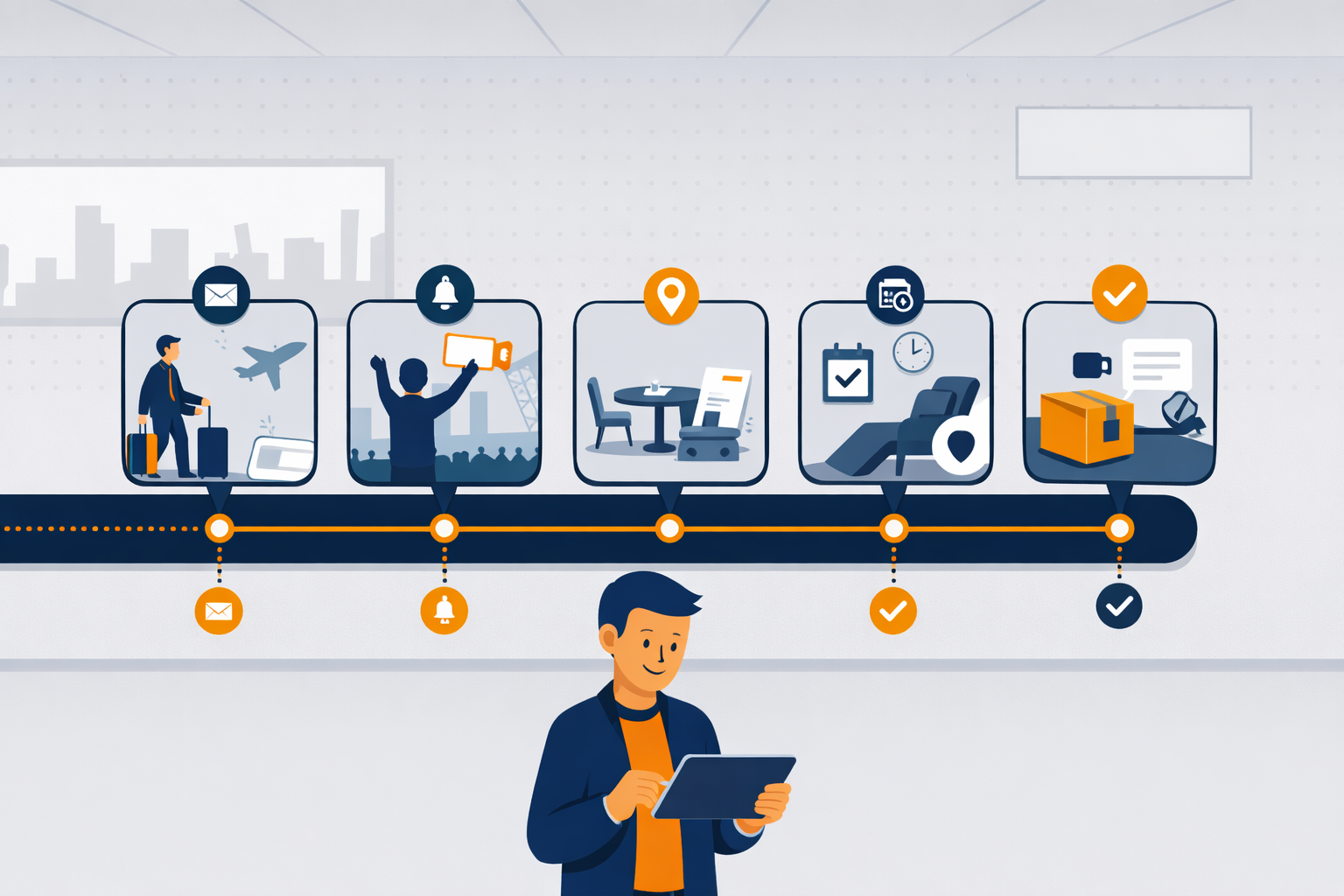
See how familiar experiences like airlines, restaurants, dentists, retail, and online ordering guide people step-by-step — with automation quietly keeping everything on track.